






Support
How to Set Up the Wi-Fi Bird Feeder Camera? Step-by-Step App Pairing for 2.4GHz
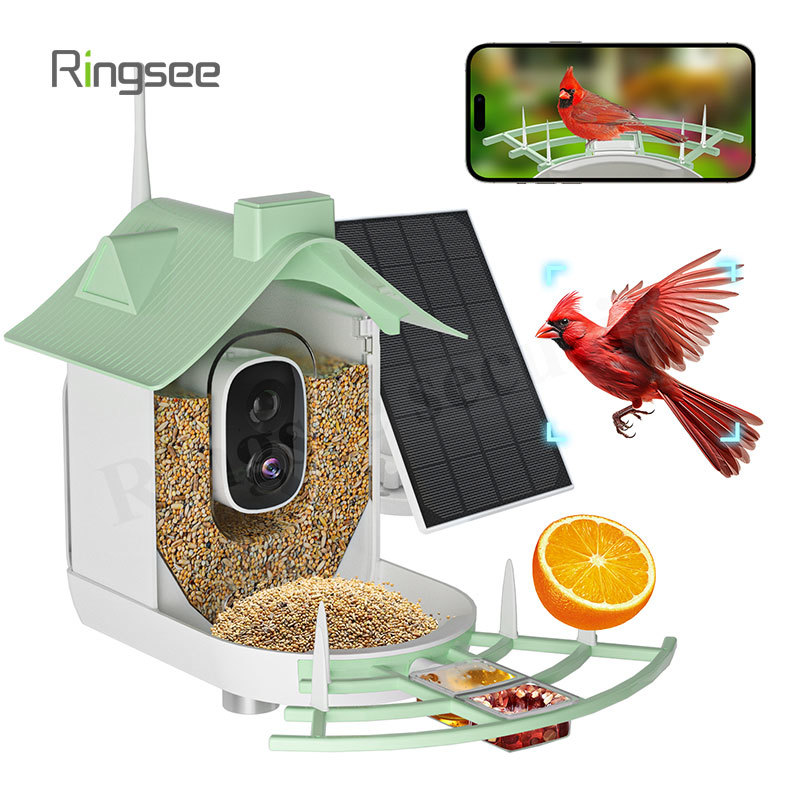
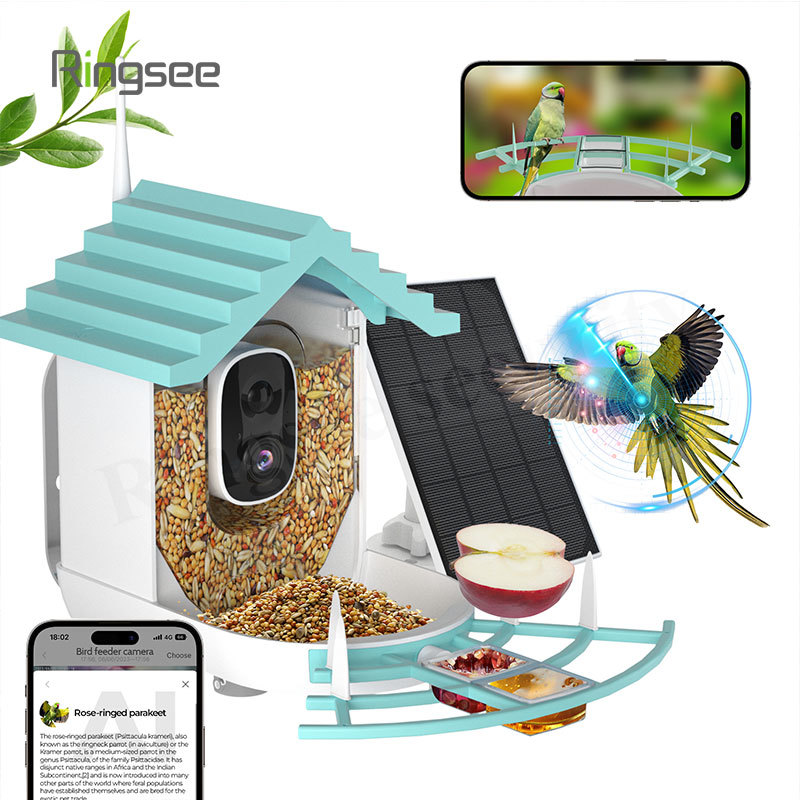
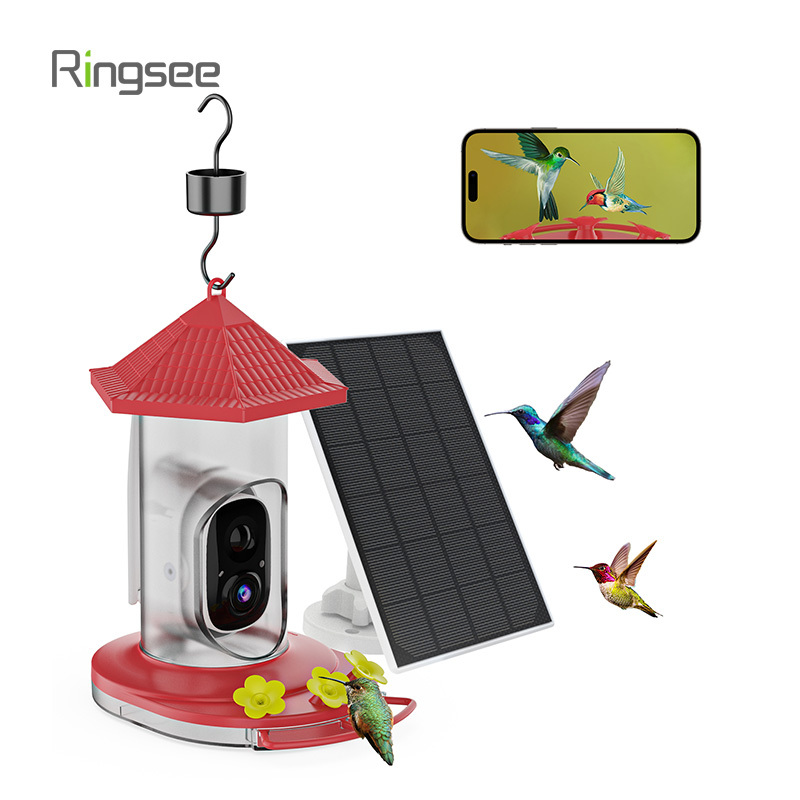
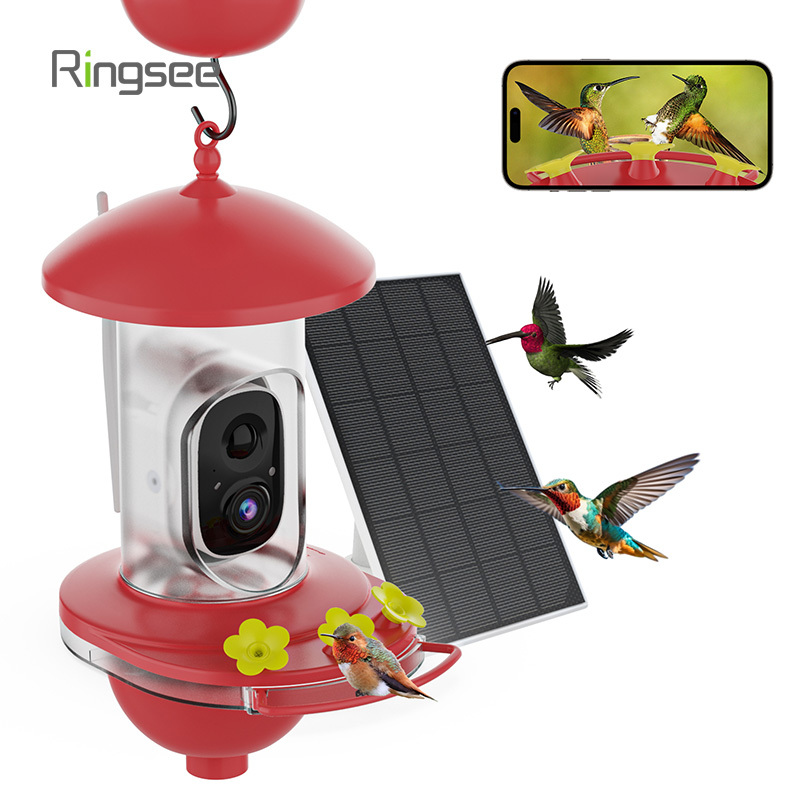
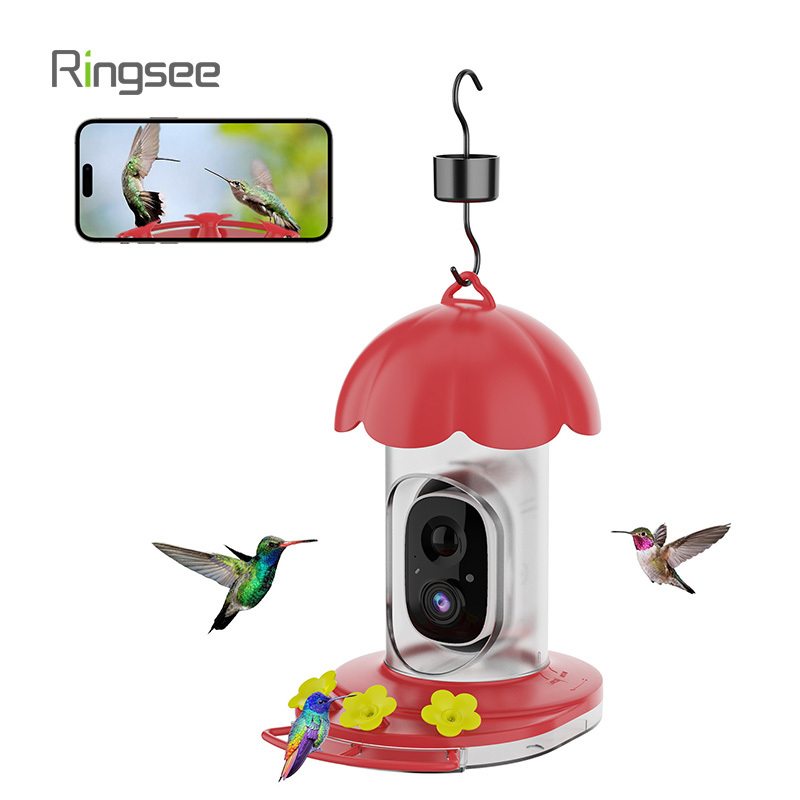
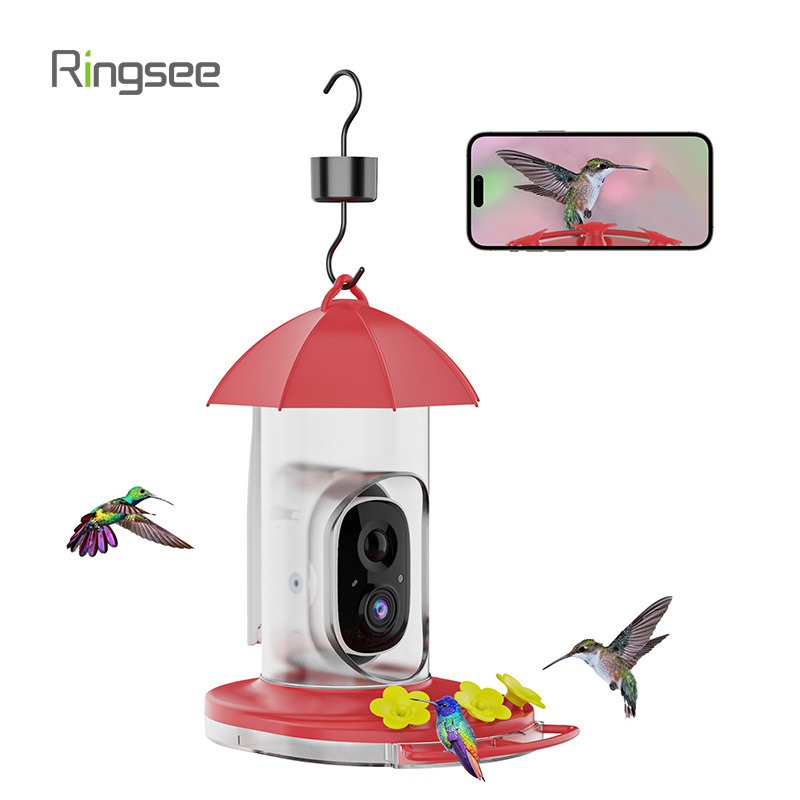
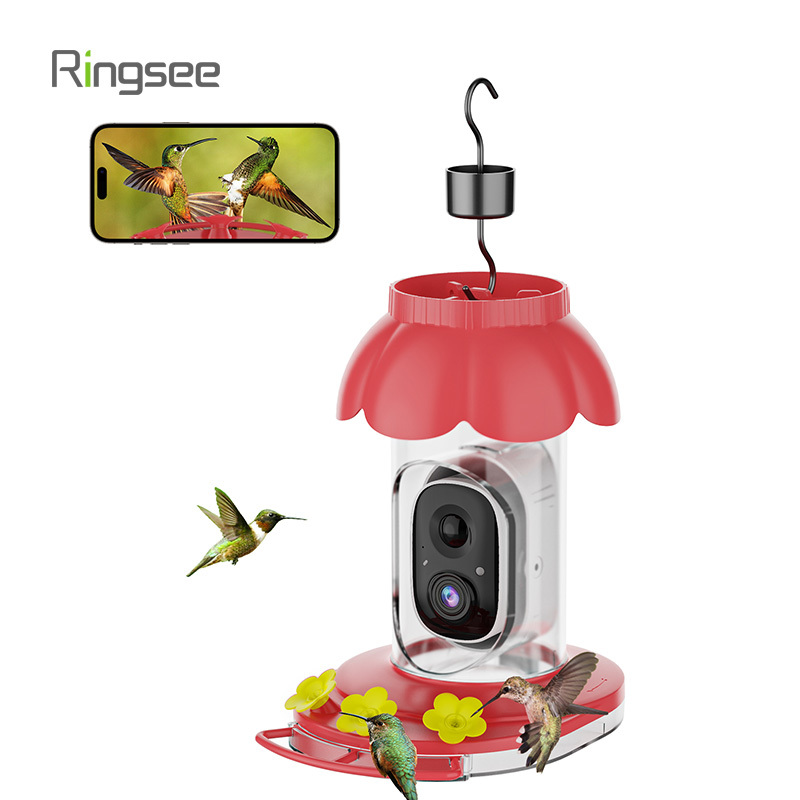
Watching nature unfold in your backyard is a joy, and the Ringsee SHRS-BFC-9103 Smart Bird Feeder makes it easier than ever. However, the first step to high-definition birdwatching is a successful setup. If you’re wondering how to pair your camera with the app on a 2.4GHz network, this comprehensive guide will walk you through the process step-by-step.
Before You Begin: Preparation is Key
To ensure a smooth pairing process, check these three requirements:
Fully Charge the Camera: Use the provided USB-C cable to charge the camera module for at least 5–6 hours. The indicator light will usually turn from red to off (or green) when fully charged.
Verify Your Wi-Fi: The SHRS-BFC-9103 (like most smart home devices) requires a 2.4GHz Wi-Fi frequency. It does not support 5GHz networks. Ensure your smartphone is connected to the 2.4GHz band of your router.
Download the App: Search for "VicoHome" in the Apple App Store or Google Play Store and create a free account.
Step 1: Power On and Enter Pairing Mode

Locate the power button on the camera module (often hidden under a protective silicone cover).
Power On: Press and hold the power button for 3 seconds. You will hear a startup chime or see a solid blue light.
Activate Pairing: If the light isn't flashing, double-press the power button. The camera should enter pairing mode, signaled by a repeating "Ding Dong" sound and a flashing blue indicator.
Step 2: Add Your Device in the VicoHome App
Open the VicoHome app and follow these instructions:
Tap the "+" icon (Add Device) on the home screen.
The app may automatically detect the camera via Bluetooth. If a pop-up appears saying "New Device Found," tap "Add."
If it doesn’t auto-detect, select "Battery Camera" or "Smart Bird Feeder" from the list.
Step 3: Connect to 2.4GHz Wi-Fi
The app will prompt you to enter your Wi-Fi credentials.
Select your 2.4GHz network name (SSID).
Carefully enter your Wi-Fi password. Note: Most pairing failures are caused by incorrect passwords or attempting to connect to 5GHz.
Step 4: The QR Code Scan
If the app uses QR code pairing:
A QR code will appear on your phone screen.
Hold your phone about 6 to 10 inches (15–25 cm) in front of the camera lens.
When the camera scans the code, it will emit a "Beep" or a voice prompt saying "Wi-Fi Connecting."
Step 5: Finalizing the Connection
Wait for the app to finalize the registration. This usually takes 30–60 seconds. Once successful, you can:
Name your feeder (e.g., "Backyard Birds").
Adjust Motion Settings: Set the sensitivity to ensure you capture birds but not swaying branches.
Check Signal Strength: Ensure the feeder is placed in a location where the Wi-Fi signal is "Medium" or "Strong."
Frequently Asked Questions (Troubleshooting)
Q: My camera won’t scan the QR code. What should I do?
A: Ensure you’ve removed the protective plastic film from the camera lens. Increase your phone's screen brightness to 100% and slowly move the phone back and forth in front of the lens until it beeps.
Q: Why does the app say "Wi-Fi Not Found"?
A: Ensure your router is broadcasting a 2.4GHz signal. If you have a "Dual-Band" router with a single name, you may need to temporarily disable 5GHz in your router settings or move further away from the router to force your phone onto the 2.4GHz band.
Q: Can I use the camera without Wi-Fi?
A: While the camera can record to a MicroSD card without a live connection, you will not receive real-time notifications or be able to use the AI bird identification features without 2.4GHz Wi-Fi.
Q: How do I reset the camera?
A: Long-press the power button for 10 seconds until the camera announces it is resetting. You can then restart the pairing process from Step 1.
Conclusion
Setting up your Ringsee SHRS-BFC-9103 is the gateway to a world of avian discovery. By ensuring a stable 2.4GHz connection and following the VicoHome app prompts, you’ll be ready to identify and record your feathered visitors in no time.
For further assistance or hardware support, visit the official Ringse product page.
Links:One Belt Power Technology
Add: 14th Floor, Baoshan Building, Longhua District, Shenzhen China.
Privacy Policy | SEO | CitySite | Support: 300.cn Dongguan