







Support
How to Troubleshoot Offline Issues on a 4G Low-Power Solar Camera?
There is nothing more frustrating than checking your security feed only to see that dreaded "Device Offline" banner, especially when the camera is mounted in a remote location you can’t easily reach.
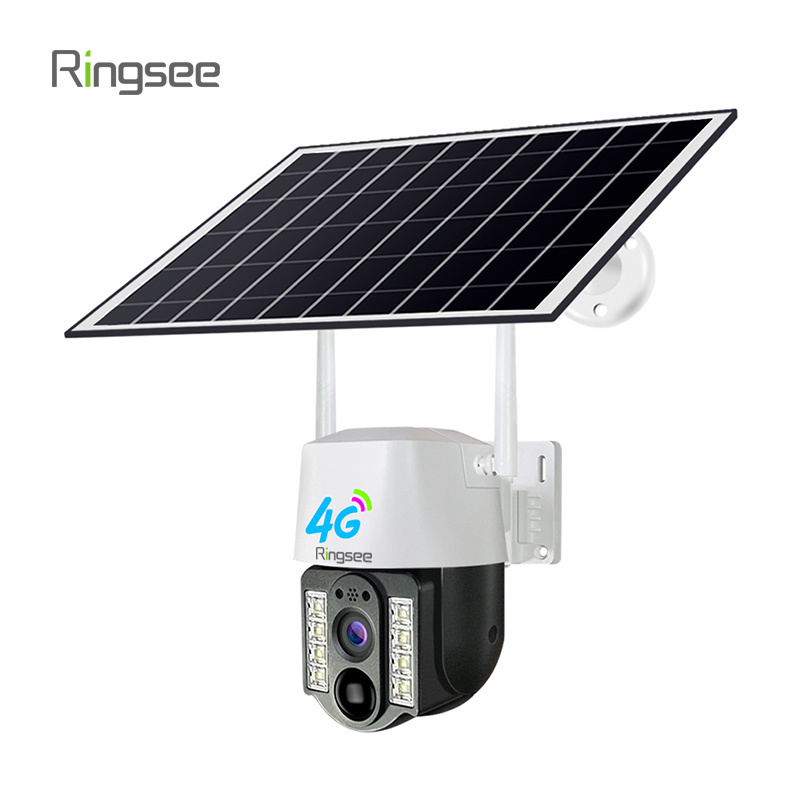
At Ringsee, we specialize in these high-efficiency 4G systems, and we know that while they are incredibly convenient, they operate differently than your standard home Wi-Fi camera. When a 4G low-power camera goes dark, it’s usually not a hardware failure—it’s typically a communication breakdown between the battery, the SIM card, or the local cell tower.
If you’re staring at a disconnected screen, here is a professional, boots-on-the-ground guide to getting your camera back online.
1. The "Ghost" Power Drain
Low-power cameras are designed to "sleep" to conserve energy. They only wake up when the PIR (Passive Infrared) sensor detects heat and motion. If your camera has gone offline, the most likely culprit is that the battery has dropped below its critical operating threshold (usually 5% to 10%). At this point, the camera will shut down its 4G radio to prevent the battery from dying completely.
What to check:
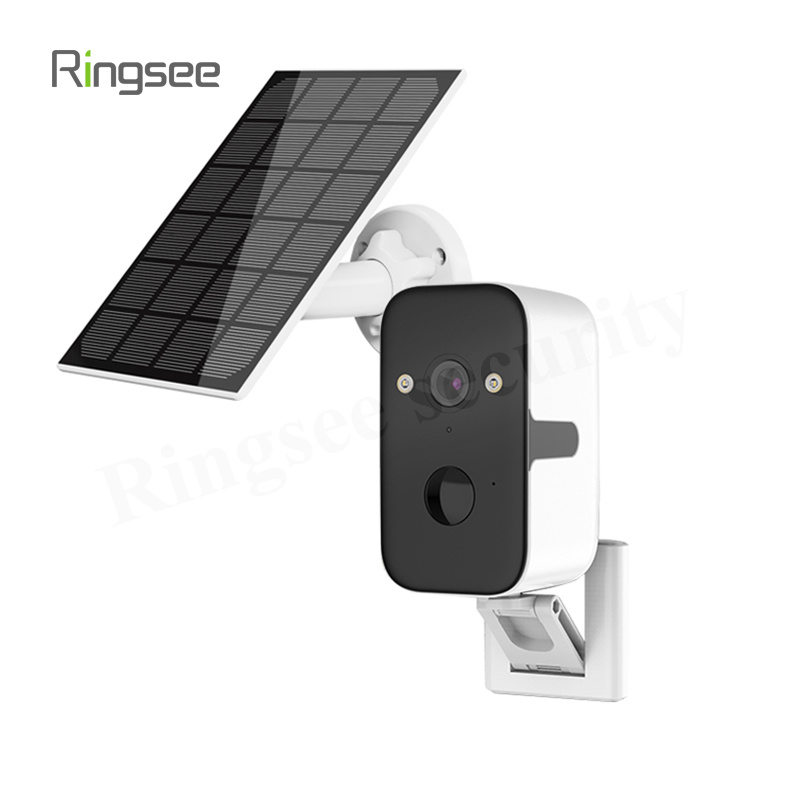
- Micro-Shading: Look closely at your solar panel. Is there a single branch or even a power line casting a thin shadow across it? Even a small amount of "partial shading" can drop a solar panel’s output by 50% or more.
- The Winter Slump: During shorter winter days, your panel might not be getting enough direct UV light to keep up with the 4G modem’s power consumption.
- The Fix: If the camera is unresponsive, bring it inside and charge it via a wall outlet for a full 10 hours. This "deep charge" often clears the offline status immediately.

2. Is Your SIM Card "Talking" to the Tower?
Think of your 4G camera as a smartphone that stays outside. If the data plan expires or the signal is interrupted, the "phone" effectively hangs up.
The Smartphone Diagnostic: The fastest way to troubleshoot a suspected SIM issue is to take the card out of the camera and pop it into your phone. Turn off your phone’s Wi-Fi and try to open a webpage. If the page doesn’t load, you’ve found your problem: either the data plan has run out, or the SIM card has been deactivated by the carrier.
APN Configuration: Sometimes, a camera loses its "APN" (Access Point Name) settings after a carrier update. If your SIM works in a phone but not in the camera, you may need to log into the camera's local settings and manually refresh the APN credentials provided by your service provider.
3. Signal Strength vs. Signal Stability
We often see cameras installed in areas where the signal shows "two bars," yet they constantly drop offline. In the world of 4G security, two bars are rarely enough for a stable HD video upload.
Cellular signals fluctuate based on weather, foliage, and even the time of day (as tower traffic increases). If your camera is mounted on a metal pole or under a metal roof, you might be experiencing "signal bouncing."
The Pro Tip: Try moving the camera just 3 to 5 feet. Sometimes, moving the device to the other side of a post or slightly higher up can move the antenna out of a "dead zone" caused by local interference. Always ensure the 4G antennas are pointed straight up; pointing them sideways or down significantly reduces their ability to "handshake" with the tower.
4. When "Offline" Actually Means "Asleep"
In some cases, the camera isn't actually offline—it’s just failing to wake up. This is often related to the PIR sensitivity settings. If the sensitivity is set too low, the camera won't trigger when you walk past, leading you to believe the device is disconnected.
Check your app settings. If you can still see the battery percentage and signal strength but can’t get a Live View, the 4G connection is fine, but the software "wake-up" command is hanging. A firmware update is usually the cure for this, as manufacturers like
5. The Hard Reset (The Last Resort)
If you’ve verified the battery is full and the SIM card has plenty of data, it’s time for a physical reset. Locating the reset button (usually hidden under a weather-proof rubber flap) and holding it for 10 seconds forces the internal 4G modem to clear its cache and re-register with the nearest cellular tower. It’s the "turn it off and back on again" of the security world, and it works more often than you’d think.
Links:One Belt Power Technology
Add: 14th Floor, Baoshan Building, Longhua District, Shenzhen China.
Privacy Policy | SEO | CitySite | Support: 300.cn Dongguan